
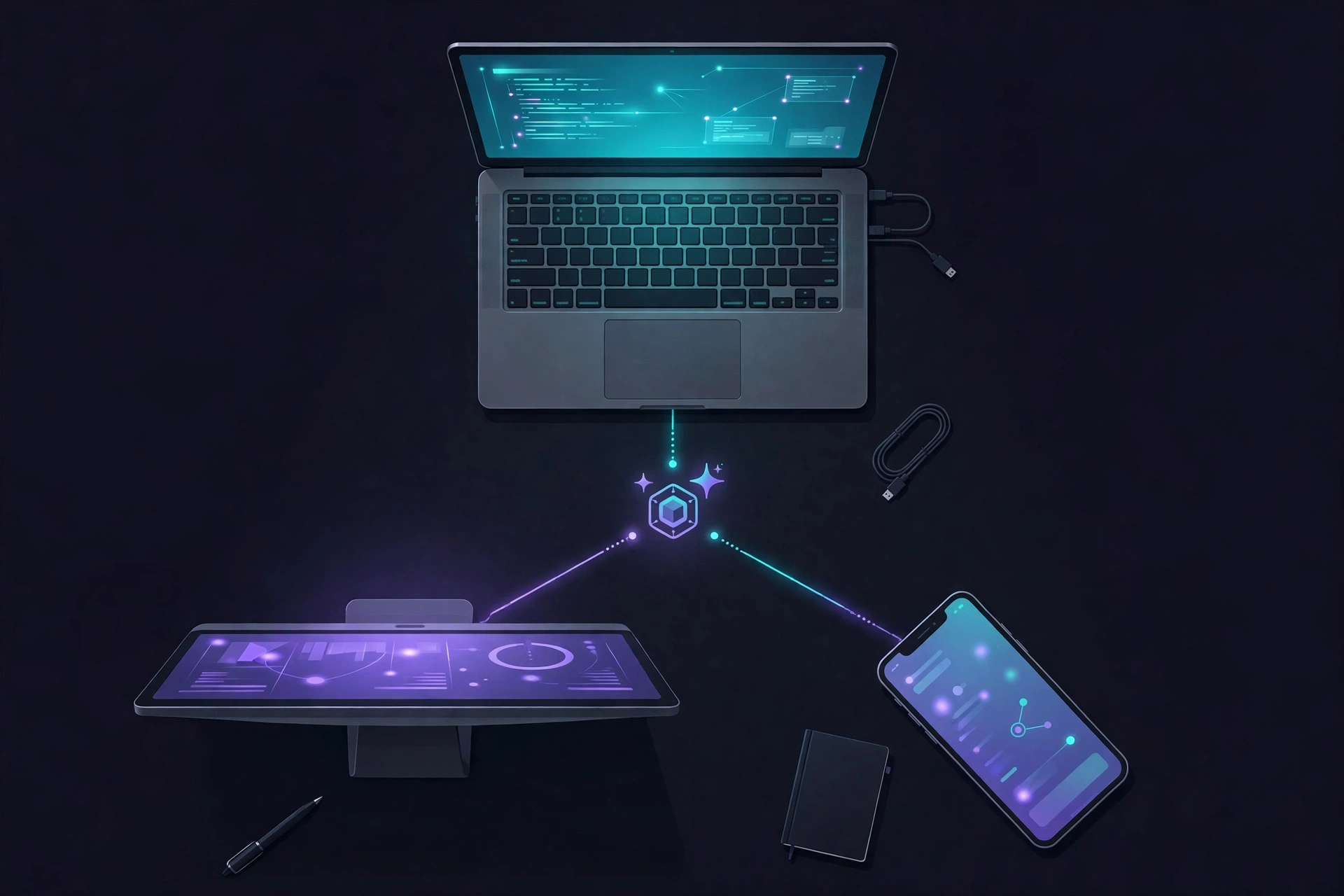
OpenAI’s always-on ChatGPT agents just got a bigger desk. On Monday, November 9, 2026, OpenAI announced that a single ChatGPT dot can now connect to multiple local computers and choose which machine handles each task. The headline example says it all: the dot can build and test your app on a dedicated machine while you keep coding on your laptop.
Until now, a dot could lean on only one personal computer at a time. That single-machine limit was a real constraint for developers, who often have a laptop for daily work, a second Mac for builds, and maybe a dedicated box for testing. With this change, the dot becomes a coordinator across a developer’s whole setup, not just a cloud agent with one local foothold.
What Changed: One Dot, Multiple Machines
A dot is OpenAI’s always-on agent inside ChatGPT. It lives in the cloud, has its own computer and browser, and keeps working even when your devices are off. Connecting a personal computer is optional, but it makes that machine’s local files, code, and apps available for the dot’s work.
The November 9 update removes the one-computer ceiling. You can now connect multiple local computers to the same dot and choose which one it uses for a task. OpenAI announced the change through its developer account, @OpenAIDevs, alongside a short demo video showing several machines listed under one dot. OpenAI’s Developer Community announcement carries the same wording, and the company’s documentation has been updated to match: the old line about connecting only one personal computer at a time is gone.
Importantly, the dot’s own cloud computer stays connected too. A dot with two local machines effectively has three computers at its disposal, and the connection persists from one task to the next. Access applies wherever you message the same dot, including from your phone.
How to Connect a Second Computer
Setup is deliberately simple, and it is the same on every machine. OpenAI’s official documentation for connecting computers and apps to a dot lays out three steps:
- Open your dot’s profile in the ChatGPT app on the computer you want to add.
- Under Computers, find the computer you are using and select Allow.
- Review the confirmation and select Allow access.
To connect another computer, repeat those steps in the ChatGPT app on that computer. Each machine needs the ChatGPT app installed, and it must stay online with the app open while the dot uses it. An Offline status simply means the computer is unavailable; it does not revoke the connection. To remove access entirely, select Revoke access.
One boundary worth knowing: the dot’s local-computer permission is separate from connecting a computer to Codex or enabling Work Sync. Neither of those connections alone gives your dot access to a machine. Each permission has to be granted on its own terms.
One Thread, One Computer: How Work Splits Across Machines

Multi-computer support does not mean one task gets split across machines. Each thread still uses one computer at a time, so parallel work across machines means separate threads: you ask your dot to start a separate thread on each computer for independent tasks.
That design shapes how the feature is actually useful. A dot can create new local Work or Codex tasks on a connected computer, continue existing local Codex tasks, or create cloud coding tasks in a Codex cloud environment you have already set up. But changing your dot’s selected computer does not move an existing task to that computer. If a task is running on your laptop, it stays on your laptop; the dot will not migrate it mid-flight.
There is also a practical fallback built into the docs. If a website blocks the dot’s cloud browser, you can ask the dot to try your connected computer instead. That may create a separate local task, and it does not transfer the cloud browser’s session or guarantee that a particular local browser is supported.
What to Try First: OpenAI’s Suggested Workflows
OpenAI’s announcement came with three concrete developer scenarios, and they are the clearest picture of who this is for:
- Building an iOS app? Ask your dot to test a change in Xcode on a second Mac and send you screenshots of how it looks.
- Need to reproduce a bug? Ask your dot to run the same test on your laptop and on a machine with an older SDK, then compare the two results without changing your everyday setup.
- Testing UI updates? Have your dot click through a flow on a second computer and capture where things break, keeping your own screen and cursor free while you work on the fix.
Staff at OpenAI added their own tips on the same day. Samir, who works on dots and ChatGPT, described the rollout as part of a wider set of improvements for how dots interact with desktop Codex. Nick Baumann suggested instructing a dot when to use different machines: the cloud computer for docs updates, a local computer for rendering videos. The pattern is consistent — route each job to the machine best suited to it, and keep your own machine free for actual work.
This fits a broader direction at OpenAI. OpenAI’s acquisition of Pierre, the company behind Codex’s storage and developer tooling, and OpenAI’s Hacktron partnership, which brings hackers in to red-team AI systems, both point to the same strategy: make Codex and its agents the place where developers build, review, and ship software. Multi-computer dots are the next step in that plan, giving the agent more of the developer’s real environment to work with.
Who Can Use Dots — and Who Can’t Yet
Dots are still rolling out gradually, and the multi-computer update inherits the product’s existing limits. OpenAI’s access page lists Pro 100, Pro 200, and Pro 500 plans for users aged 18 and older outside the European Economic Area, the United Kingdom, and Switzerland; Business Premium in supported ChatGPT regions, subject to workspace eligibility; and Enterprise, Edu, and Healthcare workspaces in an admin preview, with access on by default from November 18, 2026 unless the workspace opts out.
That regional gap is already drawing complaints. Pro users in the EEA, UK, and Switzerland are still excluded, and several replied to the announcement asking when dots will reach them. For now, the multi-computer feature is a perk for developers in supported regions on paid plans, not a general ChatGPT upgrade.
There is one small piece of good news on cost: for Pro and Business Premium users, conversations with a dot do not count toward ChatGPT usage limits. Tasks the dot starts or manages in Work or Codex still count toward those products’ usage limits as usual.
The Security Trade-Off: What You’re Really Granting
Every convenience here has a permission attached to it, and this one is broad. Allowing a computer gives the dot that machine’s local files, code, and apps for its work. OpenAI’s docs describe a single Allow access step per computer, and no finer per-folder or per-app controls are documented. That means you should connect only machines you would hand to an agent, and use Revoke access promptly when a machine no longer needs to be connected.
The risk is not theoretical. An agent that can read your code, run builds, and click through apps on your machine is powerful precisely because it has that access. The same capability that lets it test an iOS build on a second Mac could, if the dot were ever tricked by malicious instructions in a file or a web page, be turned toward things you did not ask for. OpenAI’s private sign-in flow keeps credentials out of the conversation, but the local access itself is the thing to manage carefully.
This is also why the feature matters beyond developer convenience. Cisco’s AI Defense now uses Anthropic’s Claude Mythos to red-team enterprise AI agents, and Snowflake’s agentic enterprise push is built around governing always-on AI coworkers. The industry is converging on the same question from two directions: how do you give agents real access to real systems, and how do you govern what they do with it? Multi-computer dots hand developers the access side of that equation today. The governance side is still catching up.
Why This Matters for Developers
The most interesting thing about this update is not the feature itself but what it reveals about where coding agents are heading. A dot that can only touch one computer is a helpful assistant. A dot that can reach across your laptop, your build machine, and its own cloud computer starts to look like a small team — one that works while you sleep, tests on hardware you are not using, and keeps your own screen free.
For developers with a spare Mac or a dedicated build box, the use case is immediate: long builds, test runs, and UI checks can move off the main machine entirely. For everyone else, it is a preview. The tools that used to require a carefully arranged single-machine setup are becoming multi-machine by default, and the agent is the thing doing the arranging.
The caveats are real, though. No independent test has yet measured how reliably a dot coordinates work across two machines, what happens when a selected computer drops offline mid-task, or how gracefully parallel threads handle conflicting edits. OpenAI has published no performance data, and the use cases so far are the company’s own demonstrations. Treat the feature as a useful new capability with a short track record, not a solved problem.
What to Watch Next
Three things will tell us whether multi-computer dots stick. First, whether OpenAI extends dots to the EEA, UK, and Switzerland, where Pro users are still waiting. Second, whether per-machine or per-folder permissions appear, since the current all-or-nothing access model will limit adoption in more careful teams. And third, whether developers report real-world reliability — builds that finish, tests that reproduce bugs across SDK versions, UI flows that get captured without babysitting.
If those answers come back positive, the dot stops being a single-machine helper and becomes something closer to a personal build farm with a chat interface. That is a modest change in wording and a large change in what an AI agent can actually do on your behalf.
Source: Sulat AI & Tech News coverage