
Slow Wi-Fi in one room does not always mean you need a new router. In 2026, Wi-Fi 7 is more capable than ever, but it is also easy to buy speed you will never use. The right question is not simply whether Wi-Fi 7 is better. It is whether your home, your internet plan, and your devices can actually benefit from it — or whether a better router position would solve the same problem for free.
What Wi-Fi 7 Actually Brings
Wi-Fi 7, formally known as IEEE 802.11be, is the latest generation of wireless networking. Its headline improvements are wider channels, smarter use of multiple bands at once, and lower latency. In practical terms, that means a stronger connection for busy homes with many phones, laptops, televisions, game consoles, and smart devices competing for airtime.
The most important change is 320 MHz channels in the 6 GHz band. A wider channel can carry more data at once, much like adding lanes to a road. Wi-Fi 7 also uses 4K-QAM, a denser way of packing data into a signal, which can raise throughput when the signal is strong. Together, these features help explain why Wi-Fi 7 routers advertise theoretical speeds far above earlier models — although real-world speeds depend on distance, walls, interference, and the device on the other end.
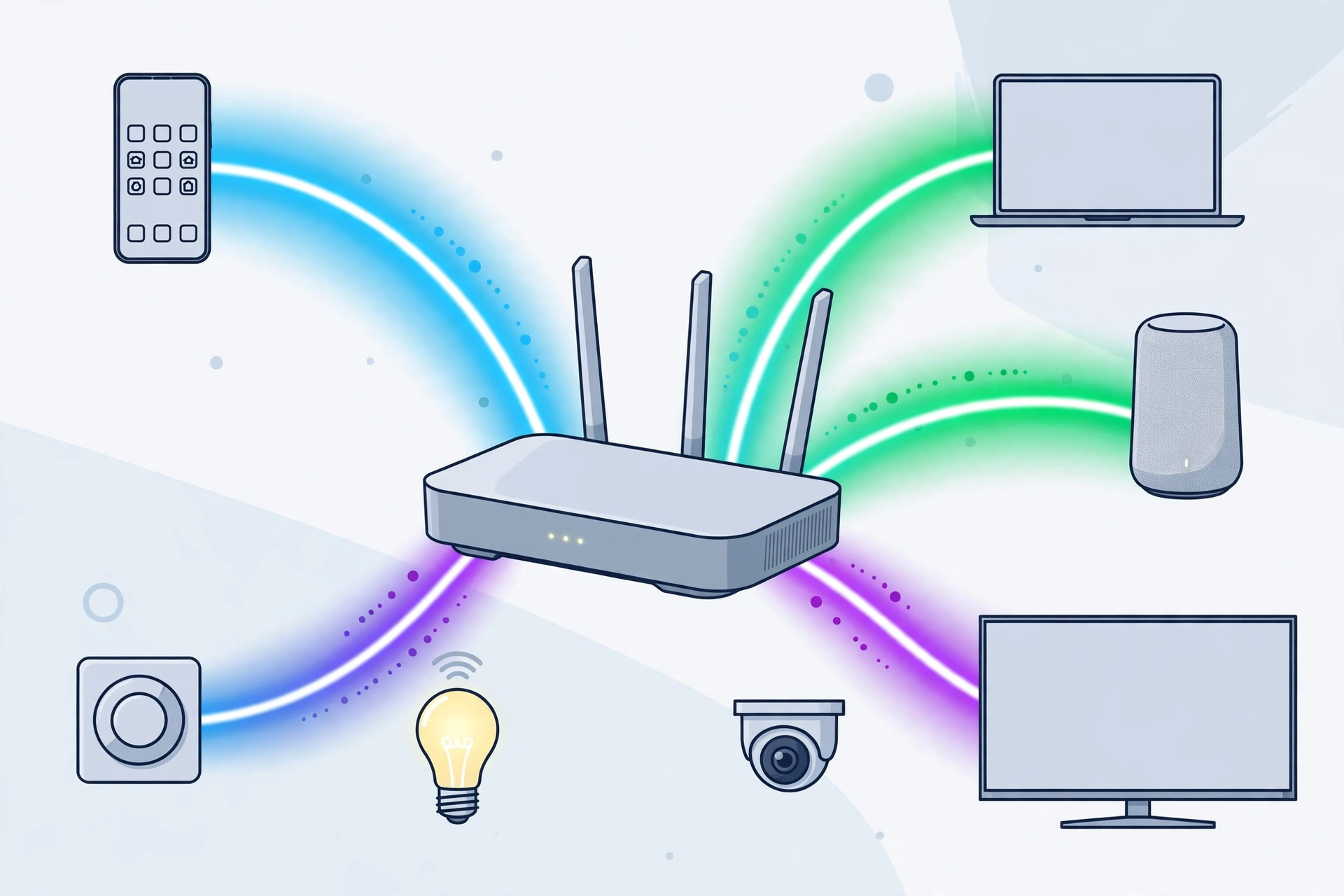
Multi-link operation, often shortened to MLO, is the other major advance. Instead of connecting a device to a single band, Wi-Fi 7 can use the 2.4 GHz, 5 GHz, and 6 GHz bands together. If one band becomes congested, traffic can move to another without dropping the connection. That can make video calls steadier, reduce stutter in online games, and keep a large file download from crowding out everything else in the house.
The 6 GHz Band, Explained in Plain Terms
Think of Wi-Fi bands as three different kinds of road. The 2.4 GHz band travels farthest and passes through walls best, but it is narrow and crowded. The 5 GHz band is faster and less congested, yet it loses strength more quickly with distance. The 6 GHz band, introduced with Wi-Fi 6E and expanded by Wi-Fi 7, offers wide, relatively empty channels for high-speed traffic at shorter range.
That trade-off matters. A device in the same room as a Wi-Fi 7 router can take full advantage of 6 GHz. A device two rooms away, behind brick or concrete, may fall back to 5 GHz or 2.4 GHz anyway. In other words, Wi-Fi 7 does not repeal the physics of wireless signals. It gives the router more tools, but it still needs a reasonably clear path to the device.
When an Upgrade Is Worth It
An upgrade makes the most sense when several conditions line up. First, your internet plan should be fast enough to notice the difference. If your plan is 100 Mbps, a Wi-Fi 7 router will not make that plan faster. If you have a gigabit plan, or a multi-gigabit plan, and your current router cannot keep up, the case becomes stronger.
Second, your devices need to support Wi-Fi 7. A Wi-Fi 7 router still works with older phones and laptops, but those devices will not use its newest features. The benefit grows as you add Wi-Fi 7 phones, laptops, and tablets. Third, your home should be busy enough to need the extra capacity: several people streaming, gaming, working, and running smart-home devices at the same time.
Finally, consider the router itself. If your current router is five or more years old, drops connections, lacks modern security updates, or cannot cover your home, replacing it may be worthwhile regardless of the Wi-Fi generation. In that case, choosing Wi-Fi 7 can be a sensible way to future-proof the purchase, provided the price fits your budget.
When Moving the Router Solves the Problem
Many Wi-Fi complaints are placement problems, not hardware problems. A router hidden inside a cabinet, behind a television, on the floor, or in a far corner has to fight through furniture, metal, and walls before its signal reaches you. Moving it to a central, open, elevated spot can improve coverage in the rooms that matter most, sometimes dramatically.

Start with the basics. Put the router in the open, roughly at waist or chest height, away from thick walls, metal appliances, and large aquariums. Keep its antennas upright if it has external antennas, and avoid placing it next to microwaves, cordless-phone bases, or other electronics that can cause interference. If your home is large or has dead zones at the far ends, a mesh system or a wired access point may help more than a single powerful router.
Also check the wired side of your network. A loose or damaged Ethernet cable, an old modem, or a congested connection can look like a Wi-Fi problem. Try a speed test next to the router, then in the problem room, and finally with a wired connection. If wired speeds are strong but wireless speeds collapse with distance, placement and coverage are the likely culprits.
A Simple Decision Checklist
Before you spend money, work through this checklist. Move the router to a central, open location and test again for a few days. Update the router firmware and check whether your internet plan matches your actual needs. Count how many of your devices support Wi-Fi 7, and note whether slowdowns happen everywhere or in just one room. If only one room is slow and the rest of the house is fine, try a better position, a mesh node, or a wired connection first.
If speeds are slow everywhere, your router is old, and you have a fast plan plus Wi-Fi 7 devices, an upgrade is easier to justify. Even then, compare prices and features rather than chasing the highest advertised speed. A mid-range Wi-Fi 7 router with good coverage and multi-gigabit Ethernet ports may serve a home better than a flagship model with features it will never use.
The Bottom Line
Wi-Fi 7 is a real step forward, especially for busy homes with fast internet and modern devices. Its wider 320 MHz channels, multi-link operation, and use of the 6 GHz band can deliver faster, steadier connections. But no router can fully overcome a bad location, thick walls, or a slow internet plan. Try the free fix first: move the router, clear its surroundings, and test. If the problem remains, you will at least know you are buying an upgrade for the right reason.
Related reading: AI phishing defenses in 2026, Black October API key breaches, and how companies scale with AWS cloud. External sources: XDA on a Wi-Fi 7 router and gigabit plan and Techlicious on when a Wi-Fi 7 upgrade makes sense.