
Why Laptops Slow Down — And Why 2026 Is a Good Time to Fix Yours
A slow laptop rarely fails all at once. It fills up gradually: startup programs pile on, browser tabs multiply, storage gets crowded, and background apps quietly use memory and battery. In 2026, that problem is more visible than ever because modern apps, video calls, and AI features expect more RAM and faster storage than older machines were built with. The good news is that most slowdowns are fixable without buying a new computer. Start with the free fixes below, then consider a hardware upgrade only if the basics do not help.
1. Restart Properly and Cut Startup Programs
Many people close the lid instead of restarting, so updates and temporary glitches never clear. Restart once a week. Then trim startup apps: on Windows, open Task Manager, go to Startup apps, and disable anything you do not need at boot, such as chat tools, game launchers, and updaters. On a Mac, go to System Settings, then General, then Login Items, and remove extras. Fewer startup apps means a faster boot and more memory for the work you actually do.
2. Free Up Storage — Aim for at Least 15 Percent Free
When a drive is nearly full, the system struggles to create temporary files and manage updates. Aim to keep at least 15 percent of your drive free. Delete large downloads you no longer need, empty the trash, uninstall apps you have not opened in months, and move photos and videos to cloud storage or an external drive. On Windows, Storage Sense can automate some cleanup. On a Mac, the built-in storage recommendations can find large files and old installers quickly.
3. Update Your System, Drivers, and Browser
Updates are not just about new features. They often fix performance bugs, security holes, and battery drain. Install the latest Windows or macOS updates, update your graphics and Wi-Fi drivers on Windows, and keep your browser updated. If a laptop feels slower right after an update, restart it and give it a day to finish background indexing before judging the result.
4. Tame Your Browser
For many people, the browser is the real bottleneck. Each tab, extension, and open video uses memory. Close tabs you are not using, or use tab groups and a reading list instead of keeping dozens open. Remove extensions you do not recognize or no longer use, and turn off hardware-heavy features like auto-playing video where possible. If your browser still feels heavy, try a fresh profile or a lighter browser for everyday reading and research.
5. Check What Is Using CPU, Memory, and Disk
Do not guess — look. On Windows, Task Manager shows which apps use the most CPU, memory, and disk. On a Mac, Activity Monitor does the same. If one app is constantly at the top of the list, update it, change its settings, or replace it with a lighter alternative. A single misbehaving sync app, antivirus scan, or browser tab can make an otherwise healthy laptop feel broken.
6. Scan for Malware and Unwanted Software
Malware and bundled junkware can slow a machine and drain its battery in the background. Run a full scan with your built-in protection — Windows Security on Windows, or a reputable scanner on Mac — and remove anything suspicious. Be careful with free cleanup tools that promise miracle speedups: many install extra software or nag you to pay. Stick to your operating system’s own tools and one trusted security app.
7. Adjust Visual Effects and Power Settings
Fancy animations look nice, but they cost resources on older hardware. On Windows, you can choose “Adjust for best performance” in performance settings, or turn off transparency effects. On a Mac, reducing motion in Accessibility settings can make an older machine feel snappier. Also check your power mode: a battery-saver or low-power setting will deliberately slow the processor to save energy, which is fine on the go but frustrating when plugged in and working.
8. Upgrade RAM and Storage — The Two Upgrades That Matter Most
If your laptop still uses a spinning hard drive, switching to an SSD is the single biggest upgrade you can make. Boot times, app launches, and file searches all improve dramatically. Adding RAM helps too, especially if you regularly run a browser, video calls, and office apps at the same time. For most everyday users in 2026, 16 GB of RAM and an SSD are a comfortable baseline. Check whether your model allows upgrades first — many thin ultrabooks have soldered memory and storage that cannot be changed.
9. Keep It Cool and Clean
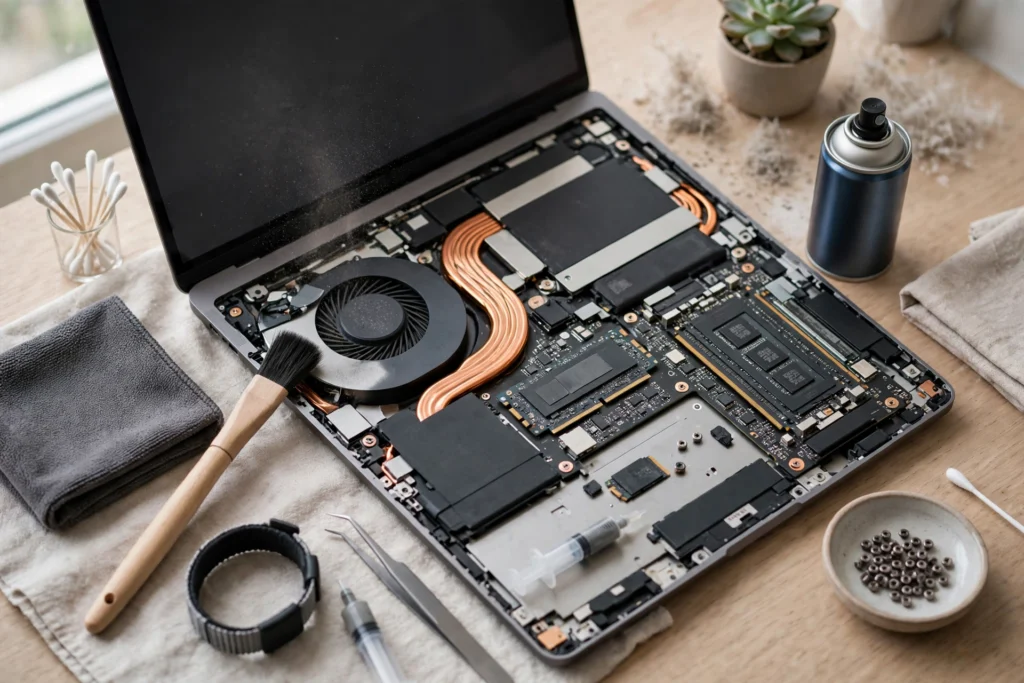
Heat forces processors to slow down to protect themselves, a process called thermal throttling. A laptop sitting on a bed or sofa can trap heat, and dust in vents makes cooling worse. Use the machine on a hard, flat surface, keep vents clear, and clean them gently with compressed air if you are comfortable doing so. If the fan is always loud and the base is always hot, even for light tasks, it may need professional cleaning or a new battery.
10. Replace an Aging Battery
A worn battery does more than shorten unplugged time. On some laptops, a failing battery can trigger reduced performance or unexpected shutdowns. Check battery health in your system settings — Windows reports it through a battery report, and macOS shows it under Battery settings. If health is well below 80 percent and you notice swelling, very short life, or sudden shutdowns, get the battery replaced by a qualified service rather than continuing to push the machine.
11. Reset the Software Before You Replace the Hardware
If you have tried everything above and the laptop is still slow, a clean reset can help. Back up your files first, then use Windows’ Reset option or macOS Recovery to reinstall the system. This removes years of leftover apps, drivers, and settings. Reinstall only the apps you actually use, and you may be surprised how much life is left in the machine.
12. Know When to Upgrade Instead
Sometimes the honest answer is a new laptop. If your machine cannot run a supported operating system, cannot be upgraded to an SSD or enough RAM, or struggles with the basic apps you need for work and study, repair costs may not be worth it. When you do shop, prioritize an SSD, at least 16 GB of RAM, a current processor, and good battery life over a slightly bigger screen or a flashier design.
A Simple 30-Minute Tune-Up Plan
You do not need to do all twelve steps at once. Try this order: restart, remove startup apps, free up storage, update everything, tame your browser, and check Task Manager or Activity Monitor. That alone fixes most everyday slowdowns. If the laptop still lags, move on to cooling, battery health, and the hardware question. A little maintenance now can add years to a laptop you already own — and save you the cost and hassle of replacing it too soon.
Related reading: buying a laptop in late 2026, AI phishing defenses in 2026, remote tech careers in 2026. External sources: Microsoft PC performance tips, Apple Mac Support