
GitHub Actions is an automated Continuous Integration and Continuous Delivery (CI/CD) and task automation platform directly integrated into the GitHub ecosystem. It allows you to automatically build, test, and deploy your code whenever an event happens in your repository, such as opening a pull request or pushing code.
Core Components Hierarchy
To master GitHub Actions, you must understand how its components link together:
- Workflows: Configurable automated processes written in YAML files. They reside in the
.github/workflows/directory of your repository. - Events: Specific activities that trigger a workflow, such as code pushes (
push), pull requests (pull_request), or a schedule cron job. - Jobs: A set of steps that execute on the same runner. By default, multiple jobs run in parallel, but you can configure them to run sequentially.
- Steps: Individual tasks that run commands or actions within a job. They run sequentially in order.
- Actions: Reusable standalone extensions or plugins (from the GitHub Marketplace) that simplify complex steps.
- Runners: The virtual machine servers (Linux, Windows, macOS) provided by GitHub or hosted by yourself that run the jobs. [1, 2, 3, 4, 5, 6, 7, 8]
Anotomy of a Workflow File
Every workflow file is built using YAML syntax. Below is an annotated, production-ready example of a basic test runner pipeline to dissect and study: [1, 2]
yaml
# 1. The visible name of your workflow in the GitHub Actions tab
name: Node.js CI Pipeline

# 2. The event trigger (When should this run?)
on:
  push:
    branches: [ main, dev ]
  pull_request:
    branches: [ main ]

# 3. The execution blocks
jobs:
  # Unique ID for the job
  test-and-build:
    # The operating system environment for the runner
    runs-on: ubuntu-latest

    # The sequential list of items to execute
    steps:
      # Step A: Clones your repository code onto the runner
      - name: Check out repository code
        uses: actions/checkout@v4

      # Step B: Sets up the development environment using a Marketplace action
      - name: Set up Node.js environment
        uses: actions/setup-node@v4
        with:
          node-version: '20'

      # Step C: Runs terminal commands to install dependencies
      - name: Install dependencies
        run: npm ci

      # Step D: Runs the test suite scripts
      - name: Run automated tests
        run: npm test
Use code with caution.
Key Concepts to Know for Learning
1. “run” vs. “uses”
- Use
runto execute standard command-line scripts directly inside the runner terminal (e.g.,run: npm run build). - Use
usesto inherit pre-written code configurations authored by GitHub or the community (e.g.,uses: actions/checkout@v4).
2. Managing Secrets and Environment Variables
Never hardcode passwords, API tokens, or cloud credentials into your YAML files. Use GitHub Secrets instead:
- Navigate to your repo Settings > Secrets and variables > Actions to store your sensitive items.
- Reference them securely in your workflow using expression context syntax:
env: API_KEY: ${{ secrets.MY_EXTERNAL_API_KEY }}
3. Job Dependency and Conditionals
You can prevent a deployment job from triggering unless your testing job completes successfully by utilizing the needs keyword:
yaml
jobs:
  test:
    runs-on: ubuntu-latest
    # ... test steps
  deploy:
    runs-on: ubuntu-latest
    needs: test # This prevents deployment if tests fail
    # ... deploy steps
Use code with caution.
Best Practices for Beginners
- Start Small: Begin by adding a basic workflow that prints “Hello World” using
echobefore attempting complex Docker or AWS configurations. - Leverage Starter Templates: GitHub provides highly optimized pre-made templates for almost every language and framework via the repository’s Actions tab.
- Inspect the Logs: When a pipeline fails, click on the red error badge under the Actions tab to read specific terminal errors step-by-step.
- Mind Versioning: Always append explicit major versions to third-party actions (like
@v4) to shield your automation from breaking API changes.
Overview
GitHub Actions is a continuous integration and continuous delivery (CI/CD) platform that allows you to automate your build, test, and deployment pipeline. You can create workflows that build and test every pull request to your repository, or deploy merged pull requests to production.
GitHub Actions goes beyond just DevOps and lets you run workflows when other events happen in your repository. For example, you can run a workflow to automatically add the appropriate labels whenever someone creates a new issue in your repository.
GitHub provides Linux, Windows, and macOS virtual machines to run your workflows, or you can host your own self-hosted runners in your own data center or cloud infrastructure.
The components of GitHub Actions
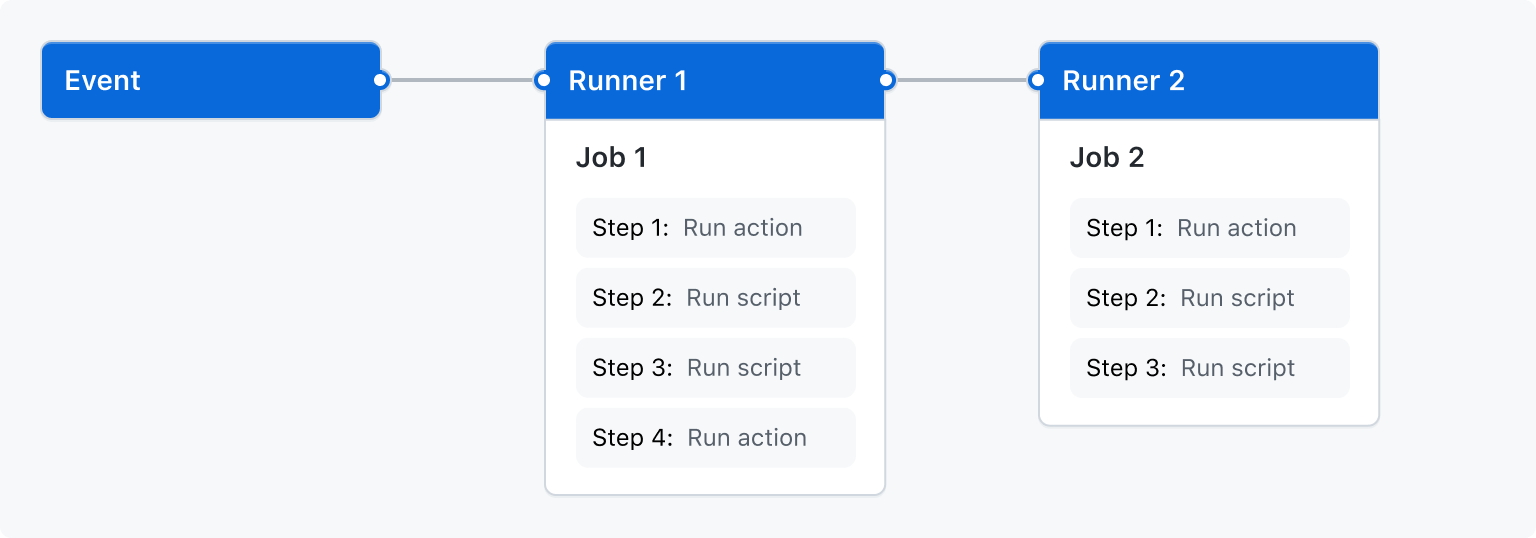
You can configure a GitHub Actions workflow to be triggered when an event occurs in your repository, such as a pull request being opened or an issue being created. Your workflow contains one or more jobs which can run in sequential order or in parallel. Each job will run inside its own virtual machine runner, or inside a container, and has one or more steps that either run a script that you define or run an action, which is a reusable extension that can simplify your workflow.
Workflows
A workflow is a configurable automated process that will run one or more jobs. Workflows are defined by a YAML file checked in to your repository and will run when triggered by an event in your repository, or they can be triggered manually, or at a defined schedule.
Workflows are defined in the .github/workflows directory in a repository. A repository can have multiple workflows, each of which can perform a different set of tasks such as:
- Building and testing pull requests
- Deploying your application every time a release is created
- Adding a label whenever a new issue is opened
You can reference a workflow within another workflow. For more information, see Reuse workflows.
For more information, see Writing workflows.
Events
An event is a specific activity in a repository that triggers a workflow run. For example, an activity can originate from GitHub when someone creates a pull request, opens an issue, or pushes a commit to a repository. You can also trigger a workflow to run on a schedule, by posting to a REST API, or manually.
For a complete list of events that can be used to trigger workflows, see Events that trigger workflows.
Jobs
A job is a set of steps in a workflow that is executed on the same runner. Each step is either a shell script that will be executed, or an action that will be run. Steps are executed in order and are dependent on each other. Since each step is executed on the same runner, you can share data from one step to another. For example, you can have a step that builds your application followed by a step that tests the application that was built.
You can configure a job’s dependencies with other jobs; by default, jobs have no dependencies and run in parallel. When a job takes a dependency on another job, it waits for the dependent job to complete before running.
You can also use a matrix to run the same job multiple times, each with a different combination of variables—like operating systems or language versions.
For example, you might configure multiple build jobs for different architectures without any job dependencies and a packaging job that depends on those builds. The build jobs run in parallel, and once they complete successfully, the packaging job runs.
For more information, see Choosing what your workflow does.
Actions
An action is a pre-defined, reusable set of jobs or code that performs specific tasks within a workflow, reducing the amount of repetitive code you write in your workflow files. Actions can perform tasks such as:
- Pulling your Git repository from GitHub
- Setting up the correct toolchain for your build environment
- Setting up authentication to your cloud provider
You can write your own actions, or you can find actions to use in your workflows in the GitHub Marketplace.
For more information on actions, see Reusing automations.
Runners
A runner is a server that runs your workflows when they’re triggered. Each runner can run a single job at a time. GitHub provides Ubuntu Linux, Microsoft Windows, and macOS runners to run your workflows. Each workflow run executes in a fresh, newly-provisioned virtual machine.
GitHub also offers larger runners, which are available in larger configurations. For more information, see Using larger runners.
If you need a different operating system or require a specific hardware configuration, you can host your own runners.
For more information about self-hosted runners, see Managing self-hosted runners.
Next steps
GitHub Actions can help you automate nearly every aspect of your application development processes. Ready to get started? Here are some helpful resources for taking your next steps with GitHub Actions:
- To create a GitHub Actions workflow, see Using workflow templates.
- For continuous integration (CI) workflows, see Building and testing your code.
- For building and publishing packages, see Publishing packages.
- For deploying projects, see Deploying to third-party platforms.
- For automating tasks and processes on GitHub, see Managing your work with GitHub Actions.
- For examples that demonstrate more complex features of GitHub Actions, see Managing your work with GitHub Actions. These detailed examples explain how to test your code on a runner, access the GitHub CLI, and use advanced features such as concurrency and test matrices.
- To certify your proficiency in automating workflows and accelerating development with GitHub Actions, earn a GitHub Actions certificate with GitHub Certifications. For more information, see About GitHub Certifications.