
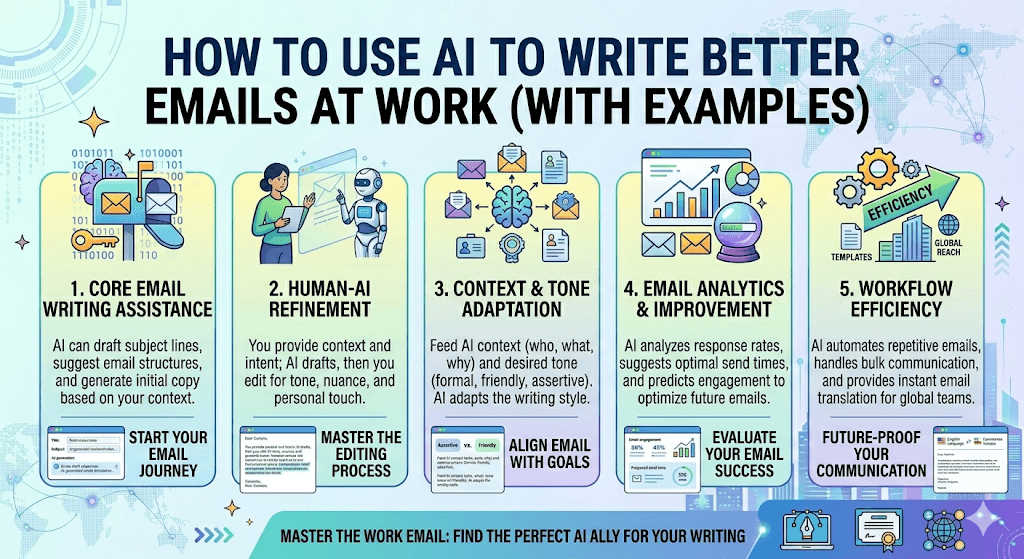
How to Use AI to Write Better Emails at Work (With Examples)
“The average professional spends over a quarter of their workday reading and writing emails. AI doesn’t just save time — it helps you say the right thing, every time.”
We’ve all been there: staring at a blank reply box, unsure how to phrase a tricky message to a manager, softening a rejection to a vendor, or untangling a thread that’s been cc’d into chaos. Email is deceptively hard. It’s not just writing — it’s tone management, diplomacy, clarity, and brevity all at once.
That’s where AI comes in. Tools like Claude, ChatGPT, and others have become genuinely useful writing partners for workplace communication — not to replace your voice, but to sharpen it. This guide walks you through how to use AI for emails, with real before-and-after examples across common scenarios.
Why AI is a natural fit for email
Email has predictable structure: a subject line, an opener, a core message, a call to action, and a sign-off. AI models are trained on millions of written communications and have internalized the nuances of professional tone — which makes them unusually good at this specific task.
More importantly, AI doesn’t get emotionally wound up. When you’re frustrated with a client or nervous about asking for a raise, your draft emails often carry that energy. An AI helps you step back and write the version you meant to send.
1. Turning a rough idea into a polished draft
The hardest part of email is often starting. You know what you want to say, but translating that into professional sentences feels laborious. Just describe your intent to AI — even clumsily — and ask for a draft.
The AI version keeps your intent intact — having a conversation about workload — but reframes it as proactive and solutions-oriented rather than overwhelmed. That’s the tone shift that matters in a professional context.
2. Adjusting tone for sensitive situations
Declining a request, delivering bad news, or pushing back on a decision all require a careful balance of directness and diplomacy. This is where AI shines — it can hold both at once.
3. Shortening long, rambling emails
Long emails often go unread or misread. If you’ve written something sprawling, AI is excellent at distilling it to the essentials without losing the key message.
A good rule of thumb: if your email is more than 150 words, it could probably be shorter. AI can help you ruthlessly trim while preserving your point. This single habit — writing shorter emails — tends to produce faster, clearer responses from recipients.
4. Following up without being annoying
Follow-up emails are awkward. You don’t want to seem impatient, but you also need a response. AI helps you strike the right note — friendly, brief, and action-oriented.
5. Writing cold outreach that actually gets replies
Cold emails live or die by their first line. Generic openers (“I hope this email finds you well”) are skip-worthy. AI can help you personalise and sharpen your opening, which dramatically affects open and response rates.
Tips for prompting AI for emails
- Give context about your relationship to the recipient. “My manager” vs. “a new client I’ve never met” will produce very different tones.
- Specify the desired length. “Keep it under 80 words” gives the AI a concrete constraint that usually produces better results than “keep it short.”
- Tell it what to avoid. “Don’t start with ‘I hope you’re doing well.'” or “Avoid corporate jargon” are powerful negative instructions.
- Ask for multiple variations. “Give me three versions — one direct, one more diplomatic, one very brief” lets you pick the version that fits the moment.
- Always edit before sending. AI drafts are starting points. A few personal tweaks — a specific detail, your natural phrasing — make them genuinely yours.
One thing to watch out for: AI-generated emails can sometimes sound overly formal or slightly generic. Read your draft out loud. If it doesn’t sound like you, adjust. The goal is to use AI as a co-writer, not a ghostwriter you never check.
What AI can’t do (yet)
AI is good at structure and tone but it doesn’t know your workplace politics, the history with a particular client, or the subtle dynamics in a team. It can’t tell you whether to send the email — only help you send a better one once you’ve decided to. Always apply your own judgment on timing, recipient selection, and whether a message belongs in email at all versus a conversation.
Also worth noting: don’t paste sensitive company data or confidential information into AI tools unless your organization has approved the tool for that purpose. Many companies now have internal AI systems or have vetted third-party tools specifically for this reason.
The bottom line
AI won’t make you a better communicator by itself — but it will help you draft faster, tone-check more reliably, and send emails you actually feel good about. Start with one email today: paste in your rough draft and ask AI to improve the tone or trim it in half. You’ll probably never write the long way again.