
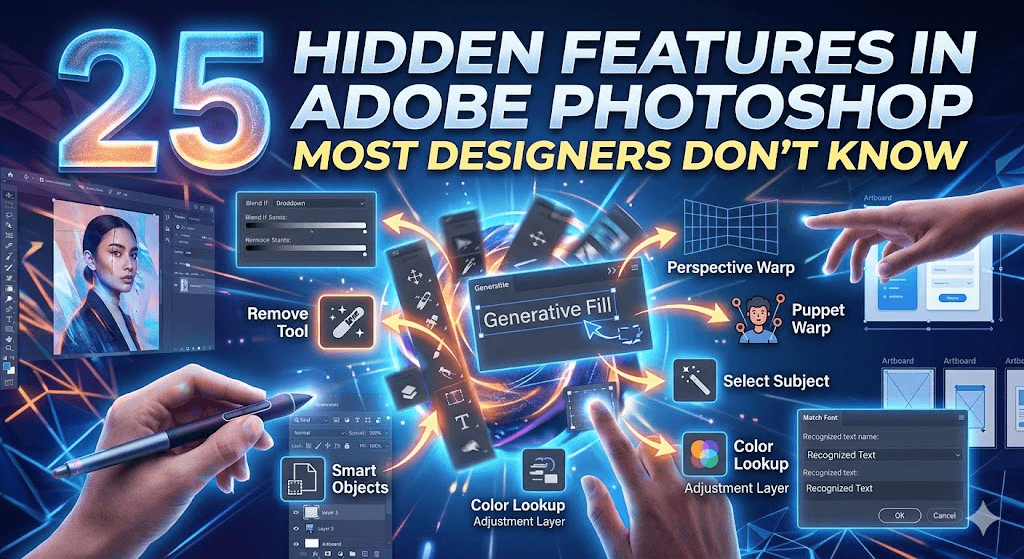
Adobe Photoshop is one of the most powerful design tools ever created — yet most designers only use 20–30% of its real capabilities. Hidden beneath familiar tools are features that can save hours of work, boost creativity, and improve workflow dramatically.
Whether you’re a beginner or a professional designer, these 25 hidden Photoshop features will help you work faster, smarter, and more creatively.
Let’s dive in.
1. Content-Aware Crop
Most people use crop just to resize images — but Content-Aware Crop automatically fills empty areas.
How to use:
- Select Crop Tool
- Check Content-Aware
- Extend canvas → Photoshop fills missing areas
Perfect for:
- Extending backgrounds
- Fixing composition
- Social media resizing
2. Select Subject (AI Magic)
Photoshop’s Select Subject uses AI to automatically detect subjects.
How to use:
- Go to Select > Subject
Great for:
- Removing backgrounds
- Portrait editing
- Product photography
3. Remove Tool (AI-Powered Object Removal)
The Remove Tool is like magic. Just brush over objects and Photoshop removes them instantly.
Perfect for:
- Removing people
- Cleaning backgrounds
- Fixing distractions
4. Blend If (Hidden Layer Blending Power)
One of Photoshop’s most powerful hidden features.
How to access:
- Double-click layer
- Find Blend If sliders
Use cases:
- Smooth blending
- Texture overlays
- Professional color grading
5. Frame Tool (Fast Image Placement)
Insert images into shapes instantly.
How to use:
- Press K
- Draw frame
- Drag image inside
Perfect for:
- Mockups
- Social media posts
- UI designs
6. Color Lookup Adjustment Layers
Professional color grading in seconds.
How to use:
- Go to Adjustments > Color Lookup
Great for:
- Cinematic looks
- Instagram-style edits
- Film color tones
7. Select Sky (Landscape Designers Love This)
Photoshop automatically detects sky.
Go to:
- Select > Sky
Perfect for:
- Sky replacement
- Landscape editing
- Dramatic photos
8. Quick Export (Save Time)
Instead of Save As, use Quick Export.
How to enable:
- File > Export > Quick Export as PNG
Speeds up workflow significantly.
9. Layer Search (For Large Projects)
Working with 100+ layers? Use Layer Search.
How to use:
- Use search bar in Layers panel
Find layers instantly.
10. Puppet Warp (Advanced Transform Tool)
Move objects naturally.
How to use:
- Edit > Puppet Warp
Great for:
- Character edits
- Product adjustments
- Creative manipulation
11. Match Font (Find Fonts from Images)
Photoshop identifies fonts automatically.
Go to:
- Type > Match Font
Useful for:
- Branding
- Logo recreation
- Typography work
12. Smart Objects (Non-Destructive Editing)
Most designers ignore Smart Objects — big mistake.
Benefits:
- Edit anytime
- No quality loss
- Reusable templates
13. Generative Fill (AI Feature)
One of Photoshop’s most powerful new features.
How to use:
- Select area
- Click Generative Fill
- Describe what you want
Perfect for:
- Background extension
- Object creation
- Image manipulation
14. Artboards (For UI Designers)
Create multiple designs in one file.
Use for:
- Mobile UI
- Website layouts
- Social media posts
15. Perspective Warp
Fix perspective issues easily.
Go to:
- Edit > Perspective Warp
Great for:
- Buildings
- Product photography
- Architecture
16. Camera Raw Filter (Hidden Photo Editor)
Powerful photo editing tool inside Photoshop.
Go to:
- Filter > Camera Raw
Perfect for:
- Color grading
- Exposure adjustment
- Skin retouching
17. Apply Image (Advanced Blending)
Advanced designers love this feature.
Go to:
- Image > Apply Image
Use for:
- High-end retouching
- Masking
- Advanced compositing
18. History Brush (Undo with Precision)
Restore specific parts of image.
Perfect for:
- Selective editing
- Retouching mistakes
19. Layer Comps (Multiple Versions)
Create multiple design versions.
Perfect for:
- Client presentations
- UI design variations
20. Select Color Range
Select colors precisely.
Go to:
- Select > Color Range
Perfect for:
- Color editing
- Background removal
21. Scrubby Zoom
Zoom smoothly by dragging mouse.
Enable:
- Preferences > Tools > Scrubby Zoom
22. Replace Color Tool
Change colors instantly.
Go to:
- Image > Adjustments > Replace Color
Great for:
- Product color variations
23. Lock Transparent Pixels
Edit only existing pixels.
Perfect for:
- Coloring icons
- Character coloring
24. Fade Command
Adjust last filter effect.
Go to:
- Edit > Fade
Hidden but powerful.
25. Keyboard Shortcut Customization
Create your own shortcuts.
Go to:
- Edit > Keyboard Shortcuts
Huge productivity boost.
Final Thoughts
Photoshop is more than just a design tool — it’s a creative powerhouse packed with hidden features that can transform your workflow.
If you start using even 5–10 of these features, you’ll:
✅ Work faster
✅ Design smarter
✅ Create professional-quality work
✅ Save hours every week